
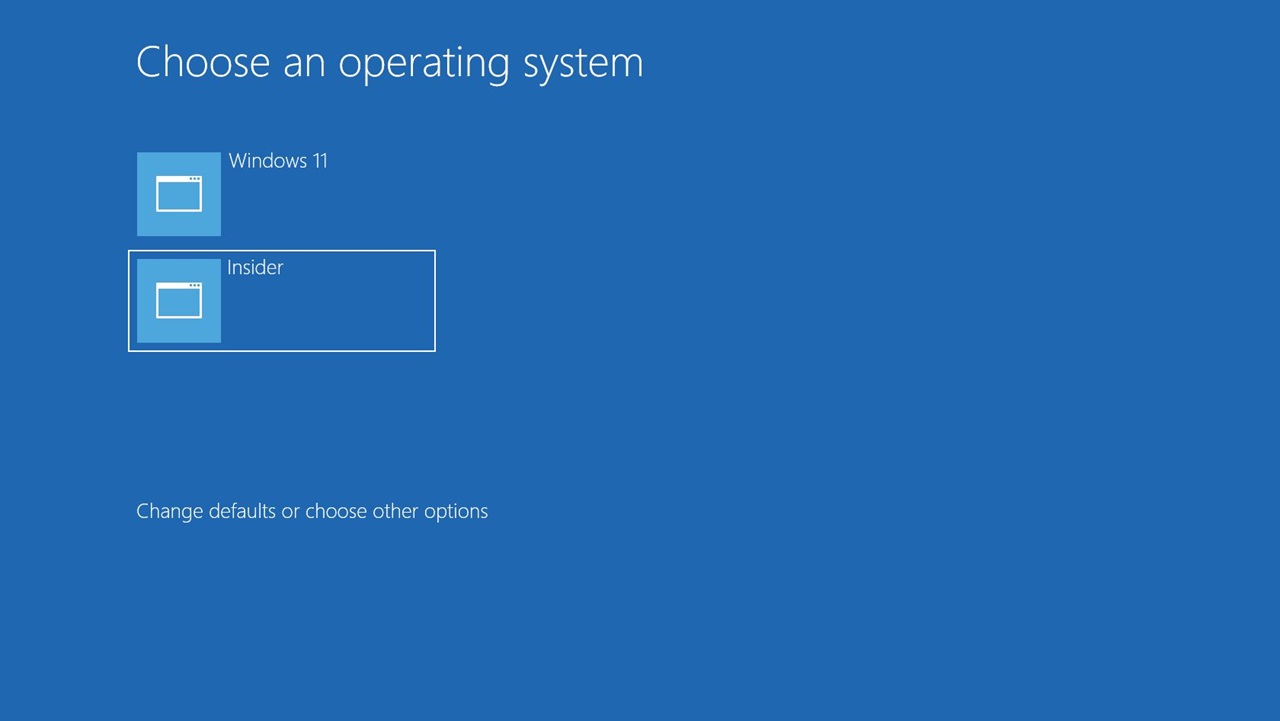
If you have ever wanted to explore Linux without giving up Windows 11, dual booting is the perfect solution. It lets you run both operating systems on the same PC and choose which one to use every time you start your computer.
For many users, the idea sounds complicated or risky. There is always that small fear of losing files or breaking something important. The truth is, if you follow the right steps, dual booting is much easier than it used to be. I have personally set it up on multiple systems, and once you understand the process, it becomes straightforward and even enjoyable.
This guide walks you through the easiest and safest way to dual boot Windows 11 and Linux, even if you are a complete beginner.
Why Dual Boot Windows 11 and Linux
Before jumping into the steps, it helps to understand why people do this in the first place.
Windows 11 is great for everyday tasks, gaming, and software compatibility. Linux, on the other hand, is fast, lightweight, and ideal for developers, privacy focused users, and those who want full control over their system.
Dual booting gives you the best of both worlds. You can use Windows for work or games, and switch to Linux for coding, learning, or experimenting.
Some real benefits include:
- No need to buy a second computer
- Full performance since both systems run natively
- Freedom to learn Linux without giving up Windows
- Better control over your system
What You Need Before You Start
A little preparation can save you from big problems later.
First, make sure your PC meets basic requirements:
- A Windows 11 system with at least 50 GB free space
- A USB drive with at least 8 GB storage
- Stable internet connection
- Basic understanding of BIOS or UEFI settings
Most importantly, back up your data. Even though this method is safe, mistakes can happen. Copy important files to an external drive or cloud storage.
Step 1: Create Free Space for Linux
Linux needs its own storage space, so you must shrink your Windows partition.
Here is how you can do it:
- Press Windows + X and open Disk Management
- Right click on your main drive usually C
- Click on Shrink Volume
- Enter how much space you want to free up at least 30 to 50 GB
- Click Shrink
You will now see unallocated space. Do not format it. Linux will use this space during installation.
A quick tip from experience: if you can spare more space, give Linux around 100 GB. It makes things more comfortable later.
Step 2: Download Linux Distribution
Next, choose a Linux distribution. If you are new, Ubuntu is the easiest option. It has a simple interface and strong community support.
Go to the official Ubuntu website and download the latest ISO file.
Other beginner friendly options include:
- Linux Mint
- Zorin OS
- Pop OS
But for this guide, Ubuntu is a safe and reliable choice.
Step 3: Create Bootable USB Drive
Now you need to turn your USB drive into a bootable installer.
You can use tools like:
- Rufus
- Balena Etcher
Steps using Rufus:
- Insert your USB drive
- Open Rufus
- Select your USB device
- Choose the downloaded Linux ISO file
- Click Start
Wait for the process to complete. This will erase all data on the USB, so make sure it is empty.
Step 4: Disable Fast Startup and Secure Boot
This step is important and often skipped.
Windows Fast Startup can interfere with Linux installation. Secure Boot may also block some Linux systems.
To disable Fast Startup:
- Open Control Panel
- Go to Power Options
- Click Choose what the power buttons do
- Turn off Fast Startup
To disable Secure Boot:
- Restart your PC and enter BIOS or UEFI
- Find Secure Boot option
- Disable it
Every system looks slightly different, so take your time here.
Step 5: Boot from USB
Now you are ready to install Linux.
- Restart your PC
- Press the boot key F12 F2 ESC or DEL depending on your system
- Select your USB drive
You will see the Linux boot menu. Choose Try or Install Ubuntu.
Step 6: Install Linux Alongside Windows 11
Once the installer opens, follow the on screen steps.
At one point, you will see installation type options. Choose:
Install Ubuntu alongside Windows Boot Manager
This is the easiest and safest option. The installer automatically uses the unallocated space you created earlier.
Continue with:
- Selecting your region
- Setting username and password
- Completing installation
The process usually takes 10 to 20 minutes.
Step 7: Restart and Choose Operating System
After installation, restart your PC.
You will now see a menu called GRUB. This lets you choose between:
- Ubuntu
- Windows 11
Use arrow keys to select your preferred system and press Enter.
That is it. You now have a dual boot system.
Common Issues and How to Fix Them
Even with a smooth process, small issues can appear.
If Windows does not show in GRUB:
Boot into Linux and update GRUB using terminal commands. Most guides online cover this step clearly.
If system boots directly into Windows:
Change boot priority in BIOS and set Linux boot manager first.
If WiFi or drivers do not work:
Open Ubuntu Software and install additional drivers.
Tips for a Better Dual Boot Experience
From real use, a few habits can make your setup much smoother.
Avoid accessing Linux files from Windows using random tools. It can corrupt data.
Keep both systems updated regularly.
Do not force shutdown when switching systems.
Learn basic Linux commands. Even simple ones can save a lot of time.
Is Dual Boot Better Than Virtual Machine
Many beginners ask this question.
A virtual machine lets you run Linux inside Windows, but performance is limited. Dual boot gives full power of your hardware.
If you are serious about learning Linux or using it daily, dual boot is the better option.
Final Thoughts
Setting up a dual boot system with Windows 11 and Linux may sound technical, but once you break it down, it becomes manageable. The key is to move step by step and not rush through the process.
The first time you boot into Linux successfully, it feels like unlocking a new level of your computer. You start seeing your system differently, with more control and flexibility.
If you have been thinking about trying Linux, this is your sign to go ahead. With a little patience and the right steps, you can set up a powerful dual boot system without losing your Windows environment.
And once you get comfortable, you might find yourself using Linux more than you expected.
Choosing an operating system in 2026 is no longer a simple decision. It is not just about what looks better Read more
Windows 11 looks modern, feels smooth, and brings a lot of improvements over older versions. But if you’ve used it Read more
If you have been using Windows for a while, you probably know how quickly software costs can add up. A Read more

Walk into any office, college lab, gaming café, or even a small home setup, and chances are high you will Read more

At AutoTechXpert.in, we're passionate about all things automotive—from the latest car launches and cutting-edge EV tech to in-depth reviews and performance insights. Our editorial team is made up of seasoned auto journalists, tech enthusiasts, and driving purists who live and breathe the road. With years of industry experience, we break down complex car jargon into real, relatable advice to help you make smarter automotive decisions.