
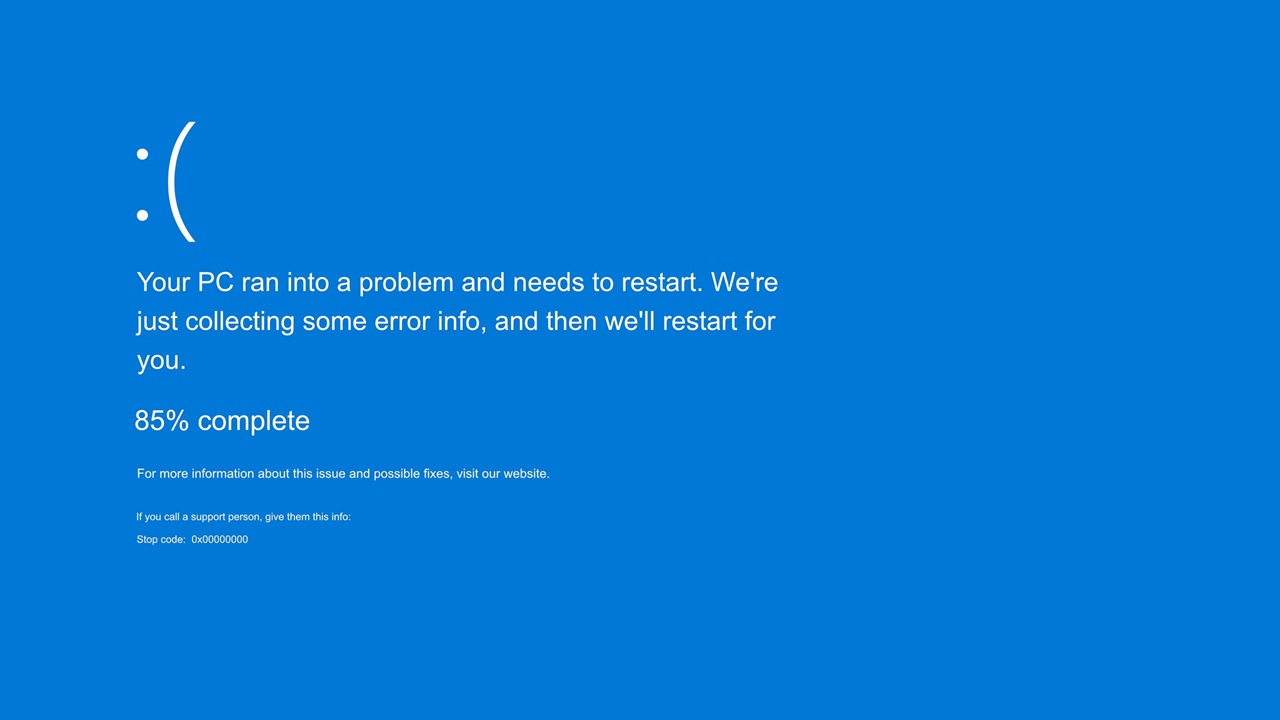
Windows 11 looks modern, feels smooth, and brings a lot of improvements over older versions. But if you’ve used it long enough, you already know one thing it is not perfect. From the dreaded blue screen to painfully slow startups and frustrating update errors, these issues can disrupt your workflow and test your patience.
The good news is that most Windows 11 problems are not as complicated as they seem. In many cases, you don’t need to be a tech expert or reinstall the entire system. A few smart steps, some basic understanding, and a bit of patience can bring your PC back to life.
This guide walks you through real solutions that actually work in everyday situations. No complicated jargon, no risky shortcuts, just practical fixes you can try right now.
Understanding Why Windows 11 Problems Happen

Before jumping into fixes, it helps to know why these problems show up in the first place.
Most common issues in Windows 11 come from a few key sources. Outdated drivers, corrupted system files, incomplete updates, or even too many startup apps can create instability. Sometimes, it is not even your fault. A new update can introduce bugs, or a third party app can conflict with system processes.
Think of your PC like a busy workspace. If too many things are running at once or something breaks in the background, performance drops and errors appear.
Now let’s fix the most common problems one by one.
Fixing Blue Screen Errors in Windows 11
The Blue Screen of Death, often called BSOD, is probably the most alarming issue. Your screen suddenly turns blue, shows an error message, and your system restarts.
What Causes Blue Screen Errors
Blue screen errors usually happen because of hardware or driver issues. Common causes include faulty RAM, outdated drivers, corrupted system files, or incompatible software.
Quick Fixes You Should Try First
Start simple. Restart your PC and disconnect any external devices like USB drives or printers. Sometimes, a temporary conflict triggers the crash.
Update Drivers
Outdated drivers are one of the biggest reasons behind blue screen errors.
Open Device Manager
Look for any device with a warning icon
Right click and update the driver
Focus especially on graphics drivers and chipset drivers.
Run Windows Memory Diagnostic
Faulty RAM can also cause crashes.
Press Windows key and type Windows Memory Diagnostic
Select Restart now and check for problems
Your system will test memory and report issues.
Use System File Checker
Corrupted system files can trigger BSOD.
Open Command Prompt as administrator and type:
sfc scannow
Wait for the scan to complete and fix any detected problems.
Check for Recent Changes
If the issue started recently, think about what changed. Did you install new software or update drivers
Try uninstalling recent apps or rolling back drivers to see if the problem disappears.
Fixing Slow Startup in Windows 11
A slow startup can make even a powerful PC feel outdated. You press the power button and wait… and wait.
Why Startup Gets Slow
Too many startup programs, background services, and outdated hardware drivers are usually the culprits.
Disable Startup Programs
This is one of the easiest and most effective fixes.
Press Ctrl Shift Esc to open Task Manager
Go to the Startup tab
Disable apps you do not need at startup
Focus on apps with high startup impact.
Turn Off Fast Startup and Turn It Back On
Sometimes this feature causes more harm than good.
Go to Control Panel
Select Power Options
Click Choose what the power buttons do
Toggle Fast Startup off, restart, then turn it on again
Update Windows and Drivers
Make sure your system is fully updated. Microsoft often releases performance fixes.
Go to Settings
Click Windows Update
Check for updates
Also update drivers from Device Manager or the manufacturer’s website.
Clean Temporary Files
Over time, junk files slow things down.
Press Windows key and type Disk Cleanup
Select your main drive
Delete temporary files and system cache
Upgrade Storage If Needed
If you are still using an HDD, switching to an SSD can dramatically improve startup speed. It is one of the most noticeable upgrades you can make.
Fixing Windows 11 Update Errors
Windows updates are essential, but they can sometimes fail or get stuck.
Common Update Problems
Updates stuck at a certain percentage
Error codes during installation
Updates failing repeatedly
Restart Windows Update Services
This often fixes stuck updates.
Open Command Prompt as administrator and run:
net stop wuauserv
net stop bits
net start wuauserv
net start bits
Then try updating again.
Clear Software Distribution Folder
This folder stores update files and can become corrupted.
Open File Explorer and go to:
C Windows SoftwareDistribution
Delete the contents of this folder and restart your PC.
Run Windows Update Troubleshooter
Windows has a built in tool for this.
Go to Settings
Select System
Click Troubleshoot
Choose Other troubleshooters
Run Windows Update
Follow the on screen instructions.
Check Internet Connection
A weak or unstable connection can interrupt updates. Make sure your connection is stable before retrying.
Free Up Disk Space
Updates need enough storage to install.
Delete unnecessary files or move large files to external storage if needed.
Bonus Tips to Keep Windows 11 Running Smoothly
Fixing issues is good, but preventing them is even better.
Keep your system updated regularly
Install software only from trusted sources
Avoid running too many heavy apps at once
Use antivirus protection to prevent malware
Restart your PC occasionally instead of keeping it on for days
A little maintenance goes a long way in keeping your system stable.
When to Consider a System Reset
If nothing seems to work and problems keep coming back, resetting Windows 11 might be the best option.
Go to Settings
Select System
Click Recovery
Choose Reset this PC
You can keep your files while reinstalling Windows, which makes it a safer option than a full wipe.
Final Thoughts
Windows 11 problems like blue screen errors, slow startup, and update failures can feel frustrating, especially when you rely on your PC daily. But most of these issues have straightforward fixes that you can handle without professional help.
The key is to stay calm and approach the problem step by step. Start with simple solutions, move to advanced ones if needed, and keep your system clean and updated.
Once you get used to these troubleshooting basics, you will not only fix problems faster but also prevent many of them from happening again. Your PC will thank you for it, and honestly, so will your patience.
Choosing an operating system in 2026 is no longer a simple decision. It is not just about what looks better Read more
If you have ever wanted to explore Linux without giving up Windows 11, dual booting is the perfect solution. It Read more

If you have been using Windows for a while, you probably know how quickly software costs can add up. A Read more

Walk into any office, college lab, gaming café, or even a small home setup, and chances are high you will Read more

At AutoTechXpert.in, we're passionate about all things automotive—from the latest car launches and cutting-edge EV tech to in-depth reviews and performance insights. Our editorial team is made up of seasoned auto journalists, tech enthusiasts, and driving purists who live and breathe the road. With years of industry experience, we break down complex car jargon into real, relatable advice to help you make smarter automotive decisions.